⚙️ Configure Cache Bid Automation
Let the worker bid when your program needs a cache slot. Automated bidding and auto-activation have separate controls and share the same Gas Tank.
Step 1: Fund your balance
Deposit ETH through the Gas Tank if your available balance is insufficient. Depositing and saving a configuration are separate actions.
Step 2: Set the maximum bid
In My Contracts, open the program's Cache tab and expand Automated Bidding Configuration. Enter Maximum Bid Amount, read the experimental-feature acknowledgement, and select the setup or update action shown for the current registration.
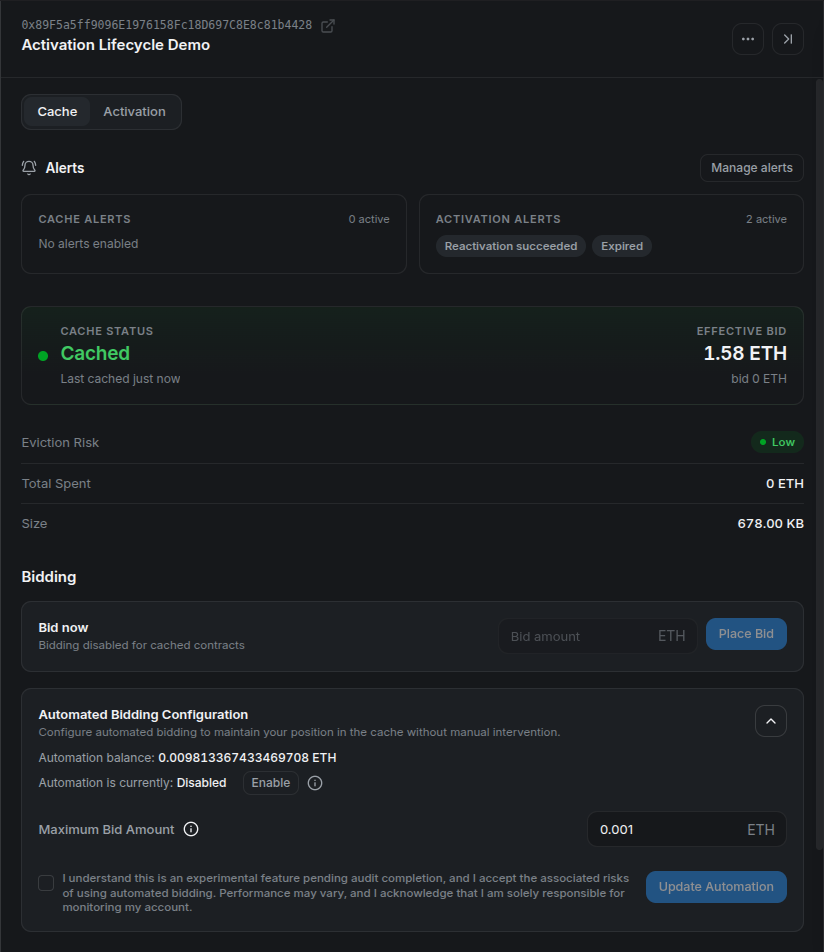
The maximum is a per-bid ceiling, not the amount the worker must spend or a total budget. CMA enforces a minimum allowed maximum (minMaxBidAmount), including when bidding is disabled. This configuration floor differs from the current auction minimum, which can be zero.
Confirm the wallet transaction. If automation still reads Disabled, select Enable and confirm that transaction too. Saving a maximum and enabling bidding can require separate confirmations.
Step 3: Verify the enabled state
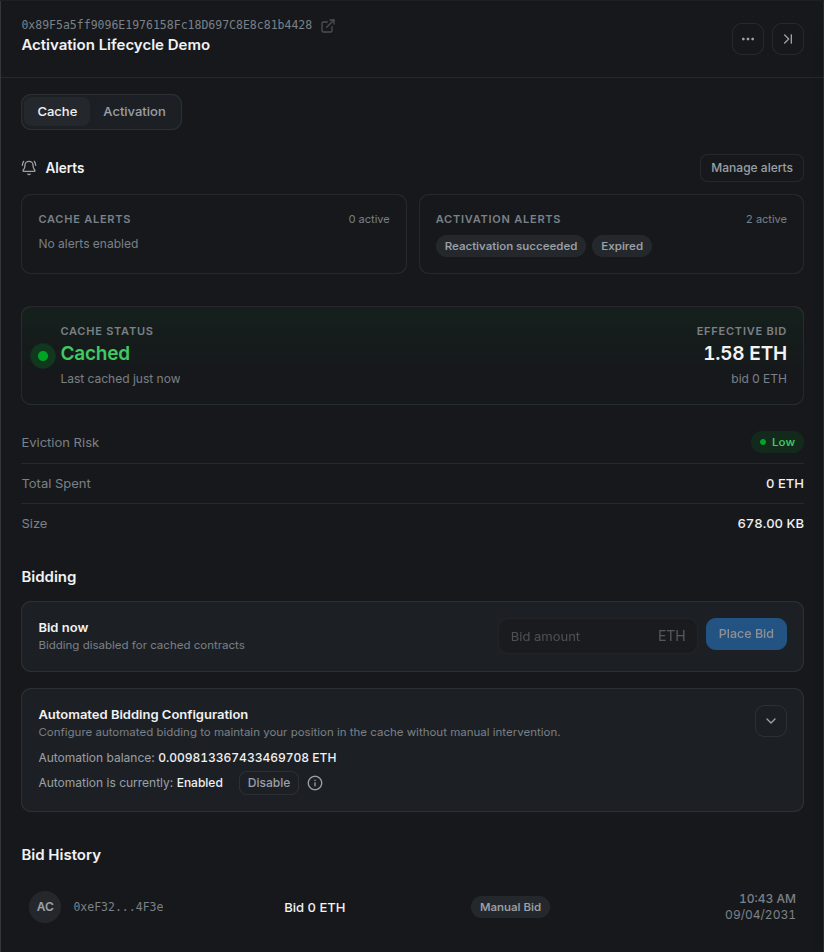
Check Enabled, the saved maximum, and the remaining balance. Changing bidding settings preserves the contract's auto-activation settings.
No immediate bid is expected if the program is already cached. The worker can also skip a contract when it is inactive, the required bid exceeds the maximum, the balance is insufficient, or the deployment's bidding worker is disabled.
Step 4: Monitor recovery
After eviction, a successful automated bid appears in Bid History and the status returns to Cached.
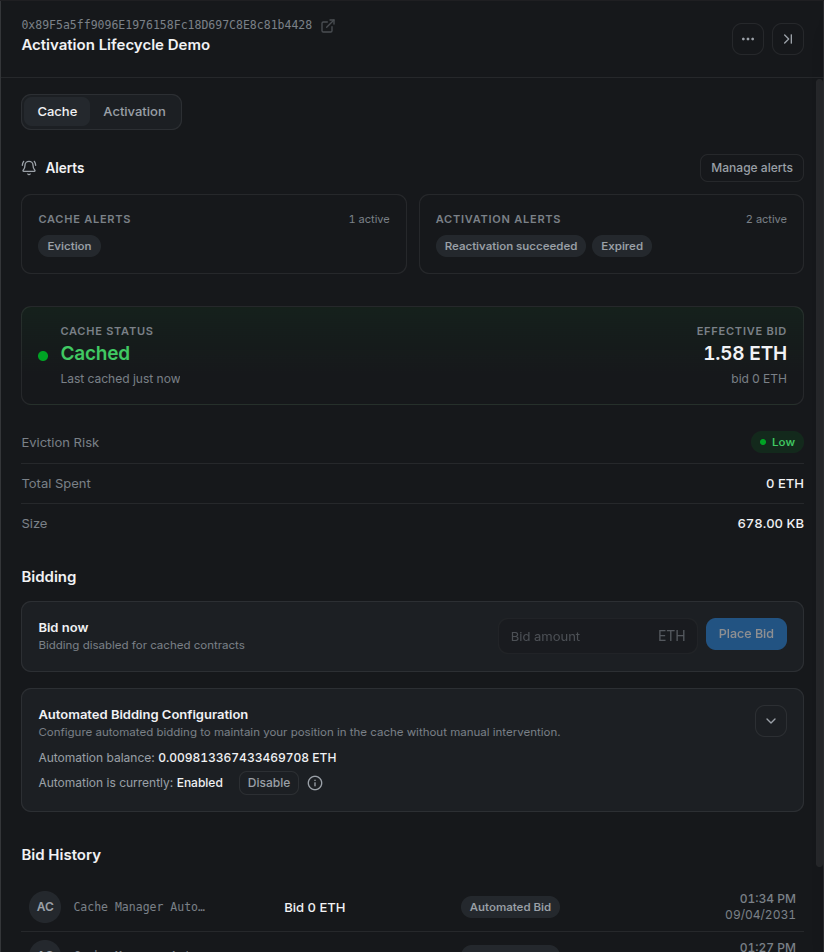
To stop automated bidding, use Disable and confirm. This leaves auto-activation independent. Removing the on-chain CMA registration removes both configurations; removing an item from My Contracts only removes the saved list entry.
See Cache Bid Automation for selection rules and the v2 release notes for the published audit and the older acknowledgement wording visible in snapshots.